
Motion
The view says where things are; motion finds the way there. A value given to ui.motion animates toward the target the view gives it on every frame, with a spring that keeps its velocity or a curve of a duration. Boxes can also move smoothly where the layout puts them, and come and go (motion.transition). Everything runs on the context's clock (c.time, which ui.Tester advances), and frames are drawn only while something moves: an app at rest draws nothing.
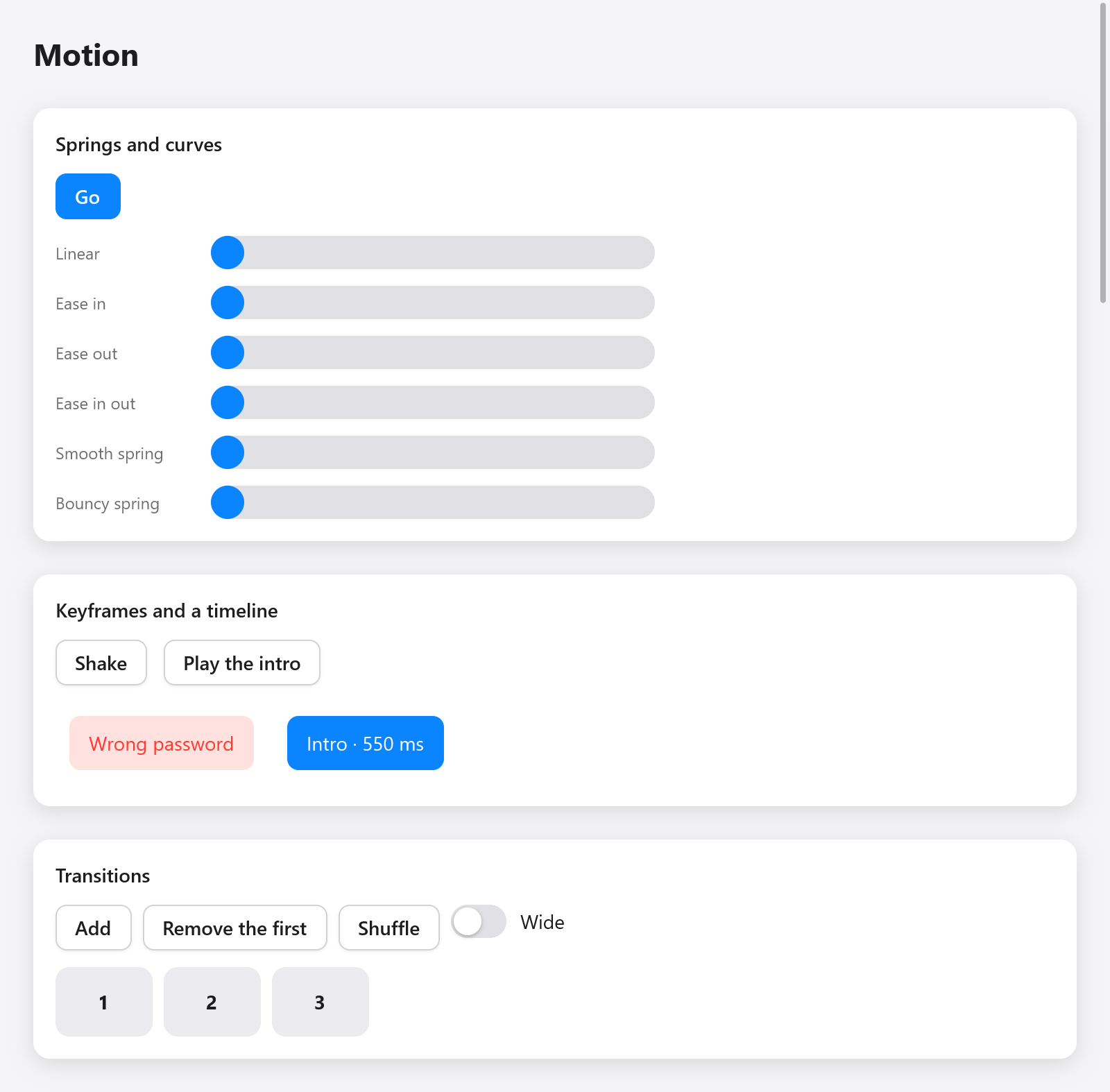
A still frame of the motion demo: easing, springs, keyframes and transitions.
const motion = myzig.ui.motion;

fn view(s: *State, c: *ui.Context) void {
    const id = c.peekId("card");
    const x = motion.animateTo(c, id, "x", if (s.open) 200 else 0, .snappy);
    _ = c.open(.{ .width = .{ .px = 80 }, .height = .{ .px = 80 }, .radius = 12,
        .background = c.theme.accent, .transform = .translation(x, 0) }, "card");
    c.end();
}
s.open changes; on the next frames the card slides to its new place. The example zig build run-gallery shows every animation on its Motion page (examples/gallery/motion.zig).
Values and their ids
A value belongs to a box's id and a key that tells the box's values apart ("x", "scale", ...). Take the id of the box you are about to open with c.peekId(key), or of a box already open with c.node(index).id; motion.to(c, key, target, a) uses the box open now.
A value starts at its first target, so a view shown the first time shows no motion. A new target on the way takes over from where the value is: a spring keeps its velocity, so a card turned around mid-flight slows down and comes back, rather than jumping.
Animations
motion.Animation says how a value goes to a new target:
| field | meaning |
|---|---|
duration | seconds of a curve; 0 (the default) uses spring |
ease | the curve's motion.Easing (.ease_out by default) |
spring | the motion.Spring used when duration is 0 |
delay | seconds the value keeps going as it was before it moves |
Three springs are ready, after SwiftUI's: .smooth (no bounce), .snappy (a little) and .bouncy (a visible one). motion.Animation.curve(seconds, ease) makes a curve:
const a: motion.Animation = .curve(0.3, .ease_in_out);
const b: motion.Animation = .{ .spring = .{ .duration = 0.4, .bounce = 0.2 } };
motion.animate(c, id, key, target, seconds) is animateTo with a curve of seconds easing out.
Easing
motion.Easing is CSS's timing functions: .linear, .ease_in, .ease_out, .ease_in_out, .cubic (made with Easing.cubicBezier(x1, y1, x2, y2), as CSS's cubic-bezier()), and .custom, a function of your own from the time (0 to 1) to the progress.
Springs
A motion.Spring is set as one perceives it, by duration (about how long it takes to arrive, 0.5 s by default) and bounce (from 0, no overshoot, toward 1). Setting stiffness or damping makes it physical instead (react-spring's 170 and 26 by default), with mass. precision says how close to its target, in the value's units, it counts as arrived, and velocity gives the value a velocity when its target changes (a throw's). Springs are solved exactly, not stepped, so they look the same at any frame rate.
Colors
motion.animateColor(c, id, key, target, a) moves a color toward target. Colors are mixed with premultiplied alpha (motion.mixPremultiplied), so a color fading in from transparent keeps its hue instead of passing through gray.
Poses that only paint
motion.pose(c, index, p, a) animates box index (open, or built this frame) toward a motion.Pose: moved by x and y, scaled by scale (0 keeps its size), turned by rotate degrees, and faded by fade (0 opaque, 1 gone). The pose acts after the box's own transform and multiplies its opacity. It changes only how the box is drawn; the layout stays.
const card = c.open(.{ .padding = .all(16), .radius = 12, .background = c.theme.surface }, "card");
ui.text(c, "Hello", .{});
motion.pose(c, card, .{ .scale = if (s.pressed) 0.96 else 1, .fade = if (s.hidden) 1 else 0 }, .snappy);
c.end();
When it is done
motion.settled(c, id, key): the value rests at its target.motion.arrived(c, id, key): true in the one frame it came to rest after moving, for the view to go on (remove what faded out, start the next step).motion.velocity(c, id, key): how fast it goes, in units a second.
Gestures
While a finger or the pointer drags something, set its value with motion.jump(c, id, key, value): it follows at once, and motion keeps track of how fast it goes. When the drag ends, animateTo with a spring takes over at that velocity, so the thing keeps going the way it was thrown. Two helpers, after iOS:
motion.project(value, velocity): where a throw carries a value, to choose where it lands (the nearest page, a snap point).motion.rubberband(value, lo, hi, dimension): a value held withinloandhias content dragged past its edges, going less far the further it is pulled.
Keyframes
motion.keyframes(c, id, key, frames, options) plays a sequence of motion.Keyframes (at in seconds from the start, value, and the ease of the segment arriving there), then holds the last value. Change options.run to play it again: from the value shown, so a shake started during a shake doesn't jump.
const dx = motion.keyframes(c, c.peekId("shake"), "dx", &.{
    .{ .value = 0 },
    .{ .at = 0.08, .value = -12 },
    .{ .at = 0.16, .value = 12 },
    .{ .at = 0.24, .value = -8 },
    .{ .at = 0.32, .value = 8 },
    .{ .at = 0.4, .value = 0, .ease = .ease_out },
}, .{ .run = s.shakes });
_ = c.open(.{ .padding = .xy(14, 10), .transform = .translation(dx, 0) }, "shake");
motion.KeyframeOptions also has repeat (how many more times; -1 plays for ever), alternate (every other time backward), delay and repeat_delay.
Timelines
A timeline places tweens one after another, together, or at times, as GSAP's do. motion.timeline(c, id, key, options) gives a Timeline whose tween returns each tween's value now:
var tl = motion.timeline(c, c.peekId("intro"), "intro", .{ .run = s.intro });
const slide = tl.tween(.{ .from = -60, .to = 0, .duration = 0.4 }, .{});
const fade = tl.tween(.{ .from = 0, .to = 1, .duration = 0.3, .ease = .linear }, .with(0.1));
const grow = tl.tween(.{ .from = 0.8, .to = 1, .duration = 0.3 }, .after(-0.1));
_ = c.open(.{ .opacity = fade,
    .transform = ui.Affine.scaling(grow, grow).then(.translation(slide, 0)) }, "intro");
A motion.Placement says where a tween starts:
.after(offset)(the default, offset 0): after the tween before ends; a negative offset overlaps it..with(offset): after the tween before starts..at(seconds): at a time of the timeline..atLabel(name, offset): after a label set withtl.label(name, placement).
motion.TimelineOptions plays it: run (change it to play over), repeat, alternate, delay, repeat_delay, paused, reverse, and seek (hold the playhead at a time) or progress (at a part of the duration, for a scrubber). The timeline tells duration(), time(), progress(), settled() and arrived().
Transitions
motion.transition(c, index, t) gives a box a transition: it moves smoothly where the layout changes it, from where the last frame showed it, comes from its enter as it appears, and goes to its exit as it leaves. Call it once the box's children are built (a collapse measures them), before closing it:
for (s.items[0..s.count]) |n| {
    const box = c.open(.{ .width = .{ .px = 70 }, .height = .{ .px = 50 }, .radius = 10,
        .background = c.theme.surface_hover }, c.print("item-{d}", .{n}));
    ui.text(c, c.print("{d}", .{n}), .{ .weight = .bold });
    motion.transition(c, box, .{
        .animation = .snappy,
        .enter = .{ .opacity = 0, .scale = 0.6, .y = 12 },
        .exit = .{ .opacity = 0, .scale = 0.6, .collapse = true },
    });
    c.end();
}
Give such boxes stable keys (c.print("item-{d}", .{n}), ui.key), so a box keeps its id as the list is reordered.
motion.Transition's fields:
| field | meaning |
|---|---|
animation | how it moves; else a curve of duration (0.2 s) along ease |
position | animate its place in its parent |
size | animate its size (sizes in points) |
colors | animate its background and border |
enter | the motion.Motion it comes from as it appears |
exit | the motion.Motion it goes to as it leaves |
When none of position, size and colors is set, all three animate. A motion.Motion is a pose relative to the box's place: x, y, opacity, scale (0 keeps its size), rotate (degrees about its center), and collapse, which takes its height away in a column (its width in a row), clipping its content, so its siblings close up.
A box leaving is drawn as the last frame drew it, under its siblings, taking no room, until its exit ends. A box appears with its enter only in a parent that was there the frame before, so a page shown all at once doesn't animate every box in it. motion.transitioning(c, id) tells whether box id is still on its way. The pointer follows boxes where their animation draws them.
Without animation
motion.disableAnimations(c) makes this frame's values, colors, poses and transitions go to their targets at once, as SwiftUI's disablesAnimations: for a change that shouldn't show as motion (a window resized, a document switched). Keyframes and timelines play on.
Less motion
When the desktop asks for reduced motion, motion.reduced(c) is true and values go to their targets at once; colors and fades still change smoothly, and an enter or exit that fades without collapsing fades in place. motion.setReducedMotion(c, true) overrides the desktop (null follows it again). Tests never ask the desktop: reduced motion is off there unless the test sets it.
Loops and your own motion
motion.loop(c, seconds) is where the clock is in a period, from 0 to 1, for spinners and pulses; it asks for frames. A view animating from c.time by itself calls c.animationFrame() to ask for the next frame, or c.frameIn(seconds) for something that changes now and then (a clock's second) without drawing every refresh in between. c.animate(id, salt, target, speed) is the simpler exponential approach the built-in widgets use for hover and press.
Testing motion
The Tester's clock moves only when the test says, so animations are tested without waiting:
s.target = 200;
t.frame();
t.advance(0.1); // a tenth of a second later
try std.testing.expect(s.shown > 20 and s.shown < 200);
t.settle(3);    // frames until nothing moves (at most 3 s)
try std.testing.expectEqual(@as(f32, 200), s.shown);
try std.testing.expect(!t.ctx.animating);
See Testing, and Transforms for what a value can move.