
Native UI
A window can show a user interface that myzig draws itself instead of a web page. You write it in Zig alone with myzig.ui: there is no HTML, no JavaScript and no frontend build, and the window starts no webview, so it opens at once and uses little memory. myzig draws it on the GPU where it can, with Metal on macOS, Direct3D 11 on Windows, OpenGL on Linux and WebGL 2 in browsers, and with its own CPU renderer (the same pixels) everywhere else; see rendering.
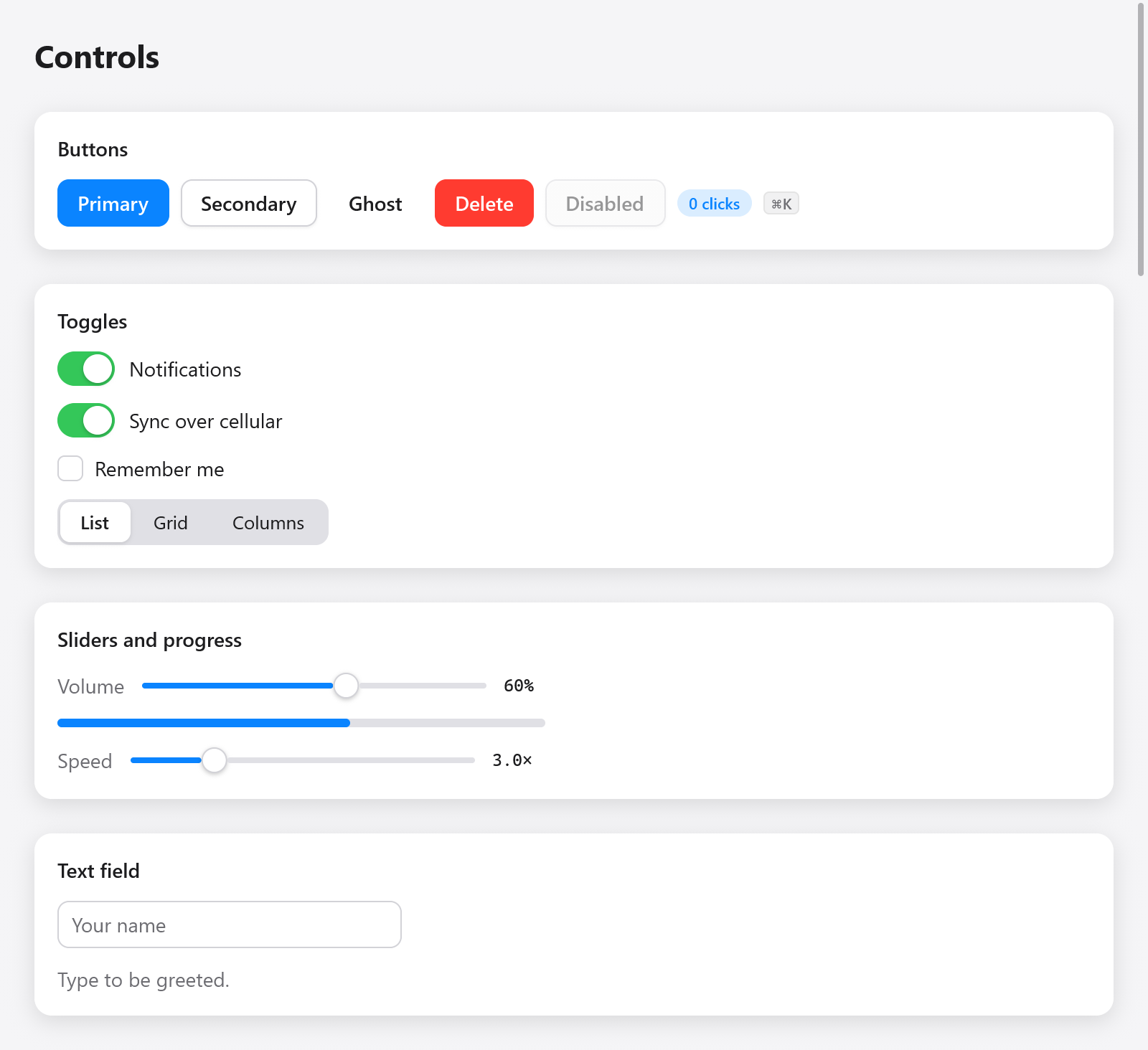
Gallery running with the light theme: buttons, switches, sliders and a text field.
The images throughout these guides are rendered from running Zig views with ui.Tester, at 2× scale. Most reuse the Gallery example; layout, grid, direction and shader images run small examples of their own. See regenerating the images.
const std = @import("std");
const myzig = @import("myzig");
const ui = myzig.ui;

/// The app's state.
const Counter = struct {
    n: i64 = 0,

    /// Builds the window's interface from the state, for every frame.
    fn view(s: *Counter, c: *ui.Context) void {
        ui.column(c, .{ .width = .fill, .height = .fill, .align_items = .center, .justify = .center, .gap = 12 });
        defer ui.end(c);
        ui.textf(c, .{ .size = 40, .weight = .bold }, "{d}", .{s.n});
        if (ui.button(c, "Increment", .{ .variant = .primary }).clicked) s.n += 1;
    }
};

pub fn main(init: std.process.Init) !void {
    const app = try myzig.App.create(init, .{ .name = "Counter" });
    defer app.destroy();
    var state: Counter = .{};
    _ = try app.newWindow(.{
        .title = "Counter",
        .width = 420,
        .height = 300,
        .content = .{ .view = .init(&state, Counter.view) },
    });
    try app.run();
}
The view is immediate mode: a function of your state that myzig runs on the main thread whenever something happens (input, a resize, an animation step). Widgets are function calls that answer at once: ui.button returns whether it was clicked, ui.toggle flips the bool you give it. These widgets report interactions during the build: you change your state, and the next frame shows it. When an interaction changes the state, myzig builds the frame again before drawing it, so the screen never lags behind the state.
Elements that need scroll or pinch events before the next build can use the optional handleInput callback.
Nothing polls. A frame is drawn on input, on a resize, while an animation runs, or when the app asks (Window.redraw, c.frameIn); an idle window uses no CPU.
What a frame keeps of what you pass
A frame is built, then laid out, then painted: layout and paint run after the view has returned. Texts are copied into the frame's memory as they are shown (ui.text, ui.richText and its spans, labels, tooltips, fields, what c.describe tells assistive technology), so a view may free or change a string right after showing it. Other slices and pointers a widget takes (a picture's bytes, an icon's name, a gradient, a canvas's points) are read where they are until the frame is drawn: pass constants, the app's own memory, or the frame's (c.print("{d} left", .{n}) formats into an arena freed when the next frame begins, c.alloc() gives that arena for anything else), never a buffer on the view function's stack. To free such data the view showed, free it after the frame (the next event, or a frame later), or keep the old copy for one more update.
Two ways to write boxes
The plain functions take a ui.Style struct, in the manner of CSS flexbox:
ui.row(c, .{ .gap = 8, .padding = .all(12), .background = c.theme.surface, .radius = 8 });
defer ui.end(c);
ui.div styles the same box with a chain of small methods, as GPUI does:
const card = ui.div(c).row().p(12).gap(8).bg(c.theme.surface).rounded(8).hover(c.theme.surface_hover);
defer card.end();
if (card.clicked()) s.open = !s.open;
Both make the same boxes; mix them freely. See layout and styling.
Run it without a window
Every view can be driven in a test with ui.Tester, which builds and draws frames offscreen, clicks, types and takes screenshots, on a clock you advance yourself:
var t: ui.Tester = undefined;
try t.init(std.testing.allocator, .init(&state, Counter.view), .{});
defer t.deinit();
try t.clickText("Increment");
try std.testing.expect(t.hasText("1"));
See testing.
The guides
Foundations:
- Views: the view function,
ui.View, the context, ids and keys, state that changes from outside, frames on demand. - Layout: rows, columns, sizes, grow, alignment, padding, scrolling, absolute boxes, clipping.
- Styling: colors, borders, shadows, the theme, light and dark, named themes, accents, the desktop's preferences, Oklch.
- Text: text styles, wrapping, rich spans, headings and labels, fonts, selectable text, zoom.
Widgets:
Items: content rows with media, descriptions and actions.
Input groups: text fields with icons, affixes and buttons.
Pagination: numbered pages and unknown-total navigation.
Empty, loading and alerts: empty content, skeleton placeholders and inline notices.
Command palette: searchable actions with keyboard navigation.
Sheet: modal panels on the window's edges.
Buttons and small things: buttons, links, badges, key caps, icons, images, avatars, history buttons.
Choices: checkboxes, checkbox groups, switches, radio buttons, radio groups, segmented controls, ratings.
Ranges: sliders, range sliders, steppers, number inputs, meters, progress bars, spinners.
Text input: text fields, search fields, token fields, comboboxes, autocomplete, input methods and the text operations.
Dates and colors: calendars, date and time inputs, color pickers and wells.
Forms: labeled fields, forms, fieldsets, validation.
Overlays: popovers, tooltips, dialogs, alert dialogs, toasts.
Menus: menus, context menus, menu buttons, selects.
Structures: tabs, collapsibles, accordions, splits, sidebars, toolbars, breadcrumbs.
Lists, trees and tables: virtual lists, trees, outlines, tables, grid views.
Grid layout: CSS-style grids of tracks and cells.
Navigation: the router, actions and shortcuts, focus groups.
Drag and drop: dragging within a window and out of it.
Custom widgets: boxes, interactions, animated values, handles: how myzig's own widgets are made.
Scrolling and pinching: scroll/pinch handlers, event routing and headless gesture tests.
Loading indicators: the optional plugin's 29 designs, independent clocks and per-design options.
Drawing and rich content:
- Motion: animated values, springs, keyframes, timelines, transitions, less motion.
- Transforms and effects: moving, scaling and turning boxes, gradients, blur, backdrop effects.
- Drawing: canvases of paths, fills and strokes, SVG.
- Charts: lines, bars, areas and more, streaming.
- Markdown: CommonMark and GitHub's extensions, streamed as it arrives.
- Text area: multi-line text, the rope, the document.
- Code editor and diff viewer: syntax highlighting, gutters, diffs.
- Rich text: the rich text editor and its toolbar.
- Shaders: shaders written once, drawn by every renderer.
- Web views: web pages in boxes of native UI, with native UI drawn over them.
Quality:
- Accessibility: what assistive technology reads, roles and descriptions, on each platform.
- Right to left: mirrored layouts.
- Inspector: the box tree of a running window (F12).
- Testing:
ui.Tester, and the apps'--myzig-*flags. - Rendering: the renderers and their CPU twin.
- Performance: what a frame costs, and how to keep it cheap.
Native UI also runs in browsers, built for wasm32-wasi; see browsers.